1. Request Organization
Everything on the AI Gateway belongs to an organization — your team's home for workspaces, model access, usage, and billing. Getting access is self-service: you request an organization, and a platform admin approves it.
Request your organization
When you first sign in you'll land on the Request your organization form. Fill it in and submit.
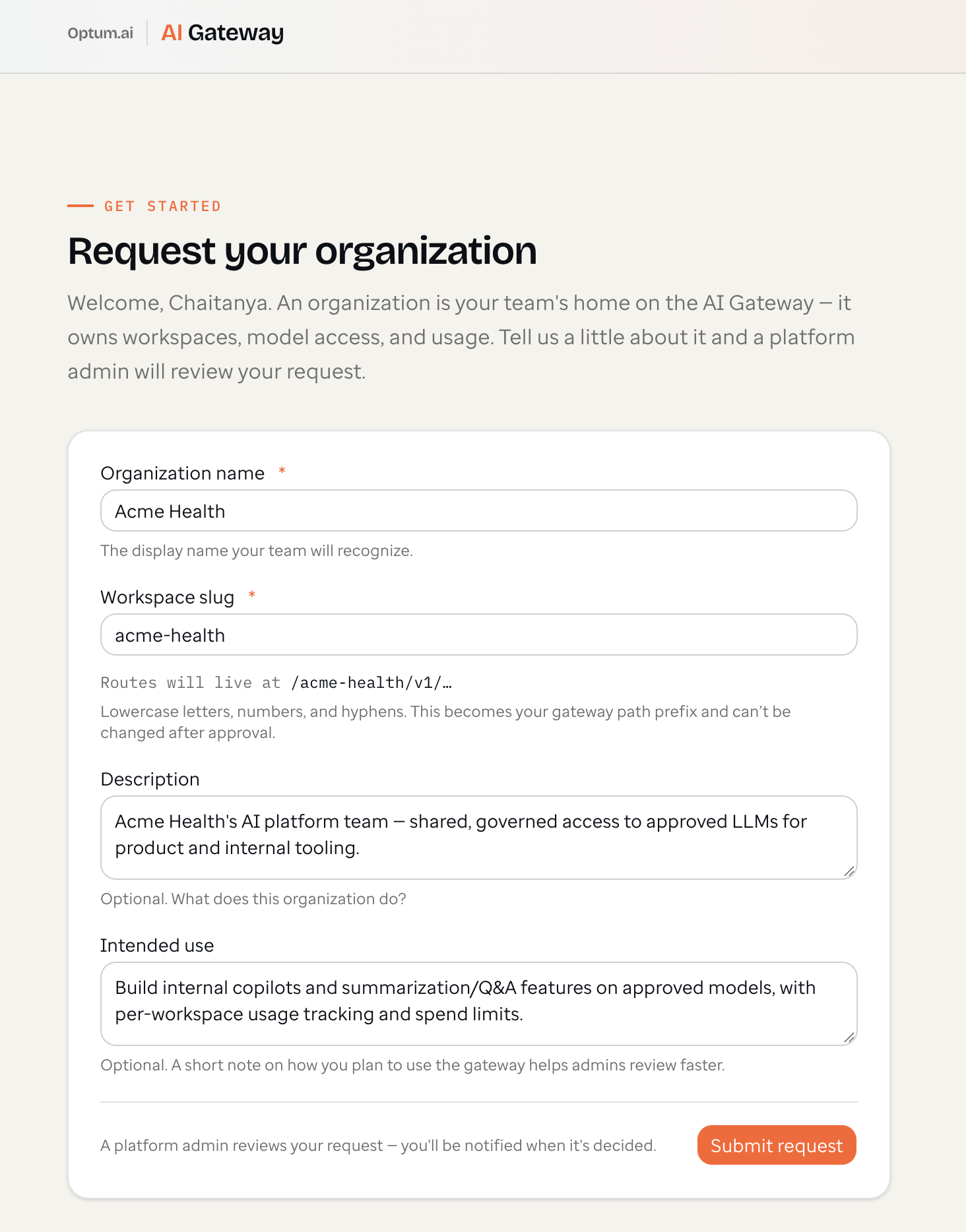
| Field | What it's for |
|---|---|
| Organization name | The display name your team will recognize (e.g. Acme Health). |
| Workspace slug | Becomes your gateway path prefix — your API routes live at /<slug>/v1/…. Lowercase letters, numbers, and hyphens; can't be changed after approval. |
| Description | Optional — what your organization does. |
| Intended use | Optional — how you plan to use the gateway. Helps admins review faster. |
Tip: choose the slug carefully (e.g.
acme-health). It's permanent and appears in every API call:https://…/acme-health/v1/chat/completions.
Wait for approval
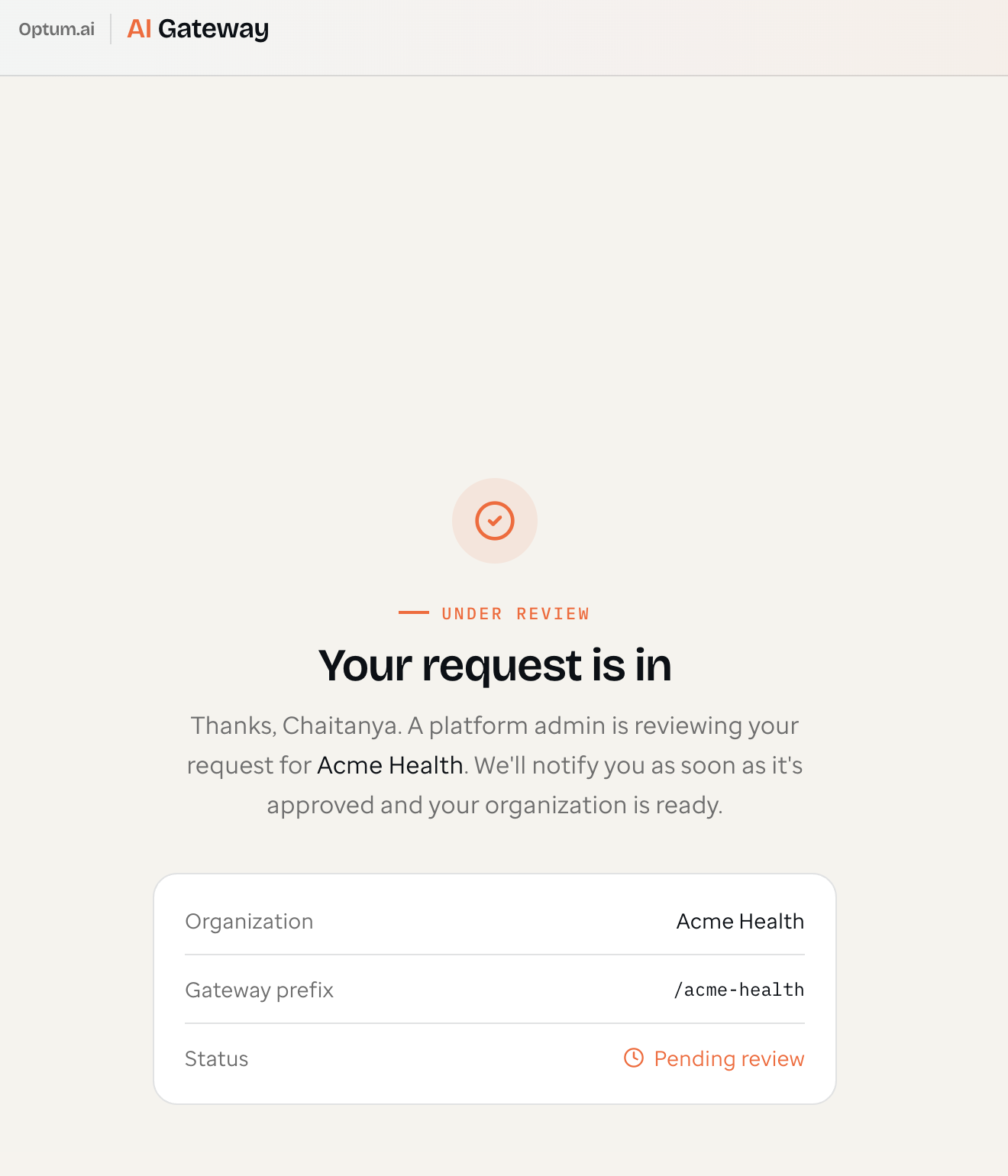
After you submit, your request goes to a platform admin for review. You'll see a confirmation with your organization name, gateway prefix, and status, and you'll be notified when it's approved.
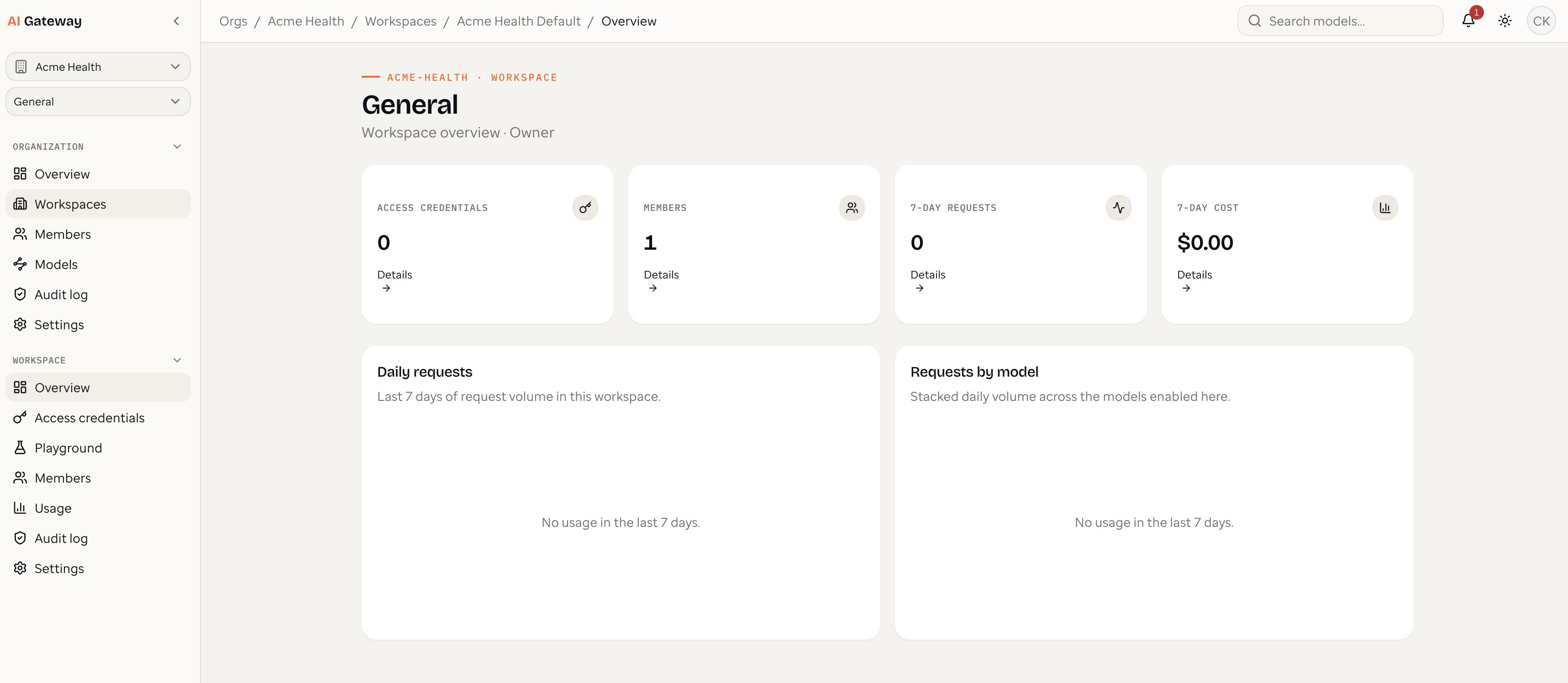
You're in
Once approved, you land in the console with your organization and a default workspace ready to go. From here you'll enable models and create credentials.
Next, enable the models your organization will use.